Navigating the world of portable PC gaming can be tricky especially when you want to bring your favorite experiences like Roblox to new hardware. Many US gamers who balance busy lives with their passion for gaming are constantly looking for ways to enjoy their preferred titles anywhere anytime. The Steam Deck offers an amazing opportunity for this but getting Roblox to run smoothly isnt always straightforward. This comprehensive guide will walk you through everything you need to know from installation methods to performance optimization and control setups ensuring you can unwind socialize and enjoy Roblox on the go. We cover common pain points and provide practical solutions allowing you to maximize your gaming time without the usual setup headaches. Discover how to transform your Steam Deck into the ultimate portable Roblox machine today and join millions of players.
How Do I Install Roblox on My Steam Deck?
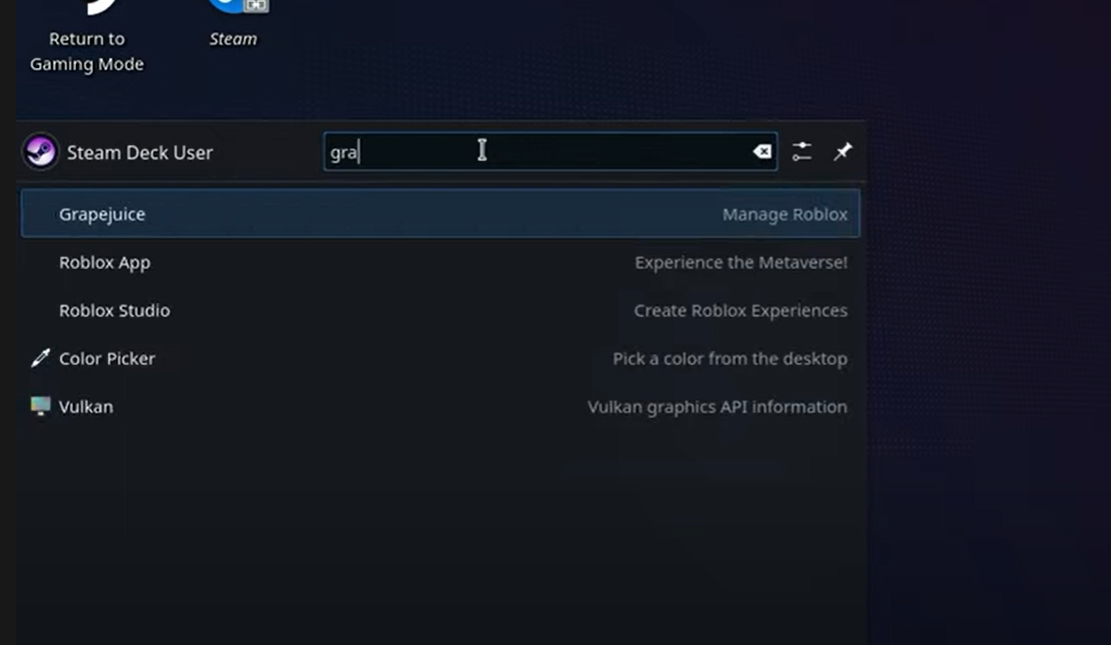
To install Roblox on your Steam Deck you typically use one of two methods. The simplest involves switching to Desktop Mode launching a web browser like Chrome then navigating to roblox.com logging in and following prompts to install the Roblox Player. For a more stable experience many gamers prefer using compatibility layers such as Lutris or Bottles found in the Discover Software Center. These tools help install Roblox using Wine or Proton which run Windows applications on SteamOS. After installation add the Roblox Player executable as a non-Steam game to launch from Gaming Mode.
Is Roblox Performance Good on Steam Deck?
Roblox performance on Steam Deck can be quite good but it largely depends on the specific Roblox experience you're playing and your optimization efforts. Graphically intensive games might require lower in-game settings. For optimal performance consider using Proton GE a community-driven Proton version adjust Steam Decks performance settings like TDP and FPS limits and lower Roblox's internal graphics quality. Many popular social and tycoon games run smoothly, providing an excellent portable gaming experience for busy adults.
Can I Use Steam Deck Controls for Roblox Games?
Yes the Steam Deck's built-in controls are fully usable for Roblox games though you might need to customize them. Since many Roblox games are designed for mouse and keyboard, you'll want to map the trackpads to act as a mouse and camera, and the buttons/paddles for common actions like jumping or interacting. The Steam Input configurator allows for extensive customization, including browsing community-created layouts. This ensures a comfortable and intuitive gameplay experience even for complex Roblox titles.
What are the Common Issues When Playing Roblox on Steam Deck?
Common issues when playing Roblox on Steam Deck include difficulty launching the game, inconsistent performance, and control mapping challenges. To fix these, ensure your Proton/Wine version is updated (Proton GE is recommended), experiment with in-game graphics settings, and verify your Steam Input controller layout. Login problems can often be resolved by clearing browser cache or reinstalling the client. Checking community forums like r/SteamDeck can provide solutions for specific errors, making troubleshooting much easier.
How Can I Play Roblox with Friends on My Steam Deck?
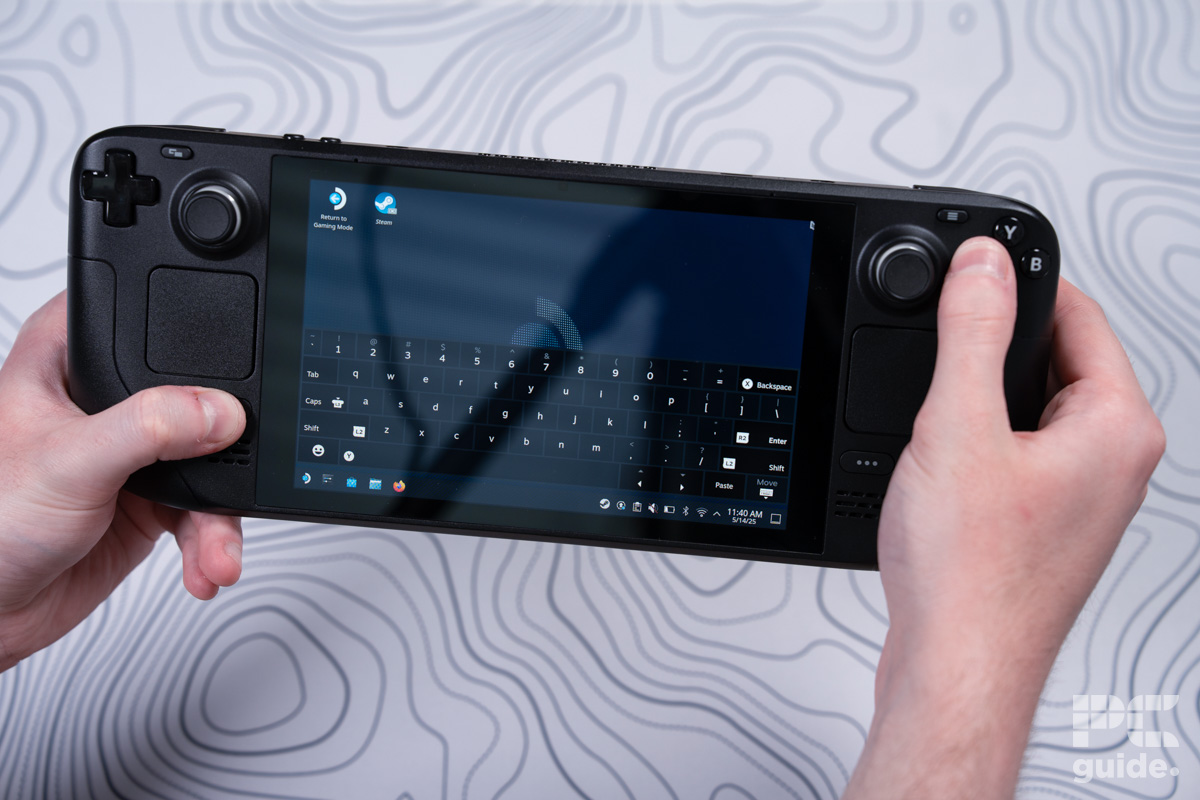
You can absolutely play Roblox with friends on your Steam Deck just like on a regular PC. Once Roblox is installed and running, you'll have full access to all social features. This includes joining friends' games, sending invitations, and using the in-game chat. Whether you've installed Roblox via a browser or a compatibility layer like Lutris, the core social functionality remains intact. The virtual keyboard (Steam button + X) will assist with typing in chat, ensuring you stay connected with your gaming community on the go.
Why is Roblox Not on the Steam Store for Steam Deck?
Roblox is not on the Steam Store for Steam Deck because it's a proprietary platform with its own distribution method, not integrated into Valve's storefront. Roblox Corporation maintains its own launcher and ecosystem, making it available as a direct download rather than through third-party platforms like Steam. This is common for many large free-to-play titles. However, the open nature of SteamOS and its compatibility layers allows users to install and run the Windows version of Roblox manually, bypassing the Steam Store entirely.
Is Roblox on Steam Deck Compatible with all Roblox Games?
Roblox on Steam Deck is largely compatible with most Roblox games, but compatibility and performance can vary. The vast majority of experiences, especially popular social games, tycoons, and simulators, run well. However, some extremely graphically demanding or poorly optimized games might struggle or require significant settings adjustments to be playable. Certain niche games with unusual input requirements might also pose challenges for controller mapping. Overall, the extensive Roblox library is mostly accessible for Steam Deck users, offering endless entertainment.
Hey fellow gamers! Ever find yourself with a few precious moments between work and family duties wishing you could dive into your favorite Roblox experiences but youre away from your main PC? Youre not alone. With over 87% of US gamers regularly dedicating 10+ hours a week to their passion and mobile gaming continuing its dominance many of us are constantly seeking ways to make our gaming fit our busy lives. The Steam Deck is a game-changer offering that sweet spot of PC power in a portable package. But the big question on everyones mind is can you get Roblox on Steam Deck and actually enjoy it? The answer is a resounding yes but it requires a bit of savvy. This article is your friendly guide through the process tackling common setup woes performance hiccups and even how to keep up with friends in the vast Roblox universe. Were here to help you get the most out of your Steam Deck making sure your relaxation and social gaming time is seamless and fun.
Can You Really Play Roblox on Steam Deck?
Absolutely! While Roblox isnt officially available on Steam or natively supported by SteamOS which is Linux-based there are reliable workarounds that allow you to install and play Roblox on your Steam Deck. This means you can tap into the endless array of games and social interactions that Roblox offers all from the comfort of your portable device. Its a popular query for a reason as gamers want to take their favorite free-to-play titles with them. Most successful methods involve either running Roblox through a web browser in desktop mode or utilizing compatibility layers like Proton or Wine which are designed to run Windows applications on Linux.
What's the Best Way to Install Roblox on Steam Deck?
There are two primary methods to get Roblox running on your Steam Deck each with its own advantages. The choice often comes down to your comfort level with tinkering and desired stability.
Method 1 Browser Installation (Simpler but Less Stable)
This is the quickest way to get started but might offer a less optimized experience. It involves using your Steam Decks desktop mode browser.
- Step 1 Enter Desktop Mode: Hold down the Power button and select Switch to Desktop.
- Step 2 Open Your Browser: Launch a web browser like Chrome or Edge which you can install via the Discover Software Center.
- Step 3 Navigate to Roblox: Go to the official Roblox website (roblox.com).
- Step 4 Log In and Play: Log into your account and try to join any game. The browser will prompt you to install the Roblox Player. Follow the on-screen instructions.
- Step 5 Add to Steam: Once installed you might need to manually add the Roblox Player executable as a non-Steam game to your Steam library for easier launching from Gaming Mode.
Method 2 Using Compatibility Layers (More Stable, Recommended)
This method provides a more robust and often better-performing experience as it mimics a Windows environment more closely. It requires installing a Windows compatibility layer like Wine or Proton.
- Step 1 Enter Desktop Mode: As above switch to Desktop Mode.
- Step 2 Install Lutris or Bottles: These are game managers that simplify installing Windows games on Linux. Find them in the Discover Software Center. Lutris is a popular choice for many community-driven installations.
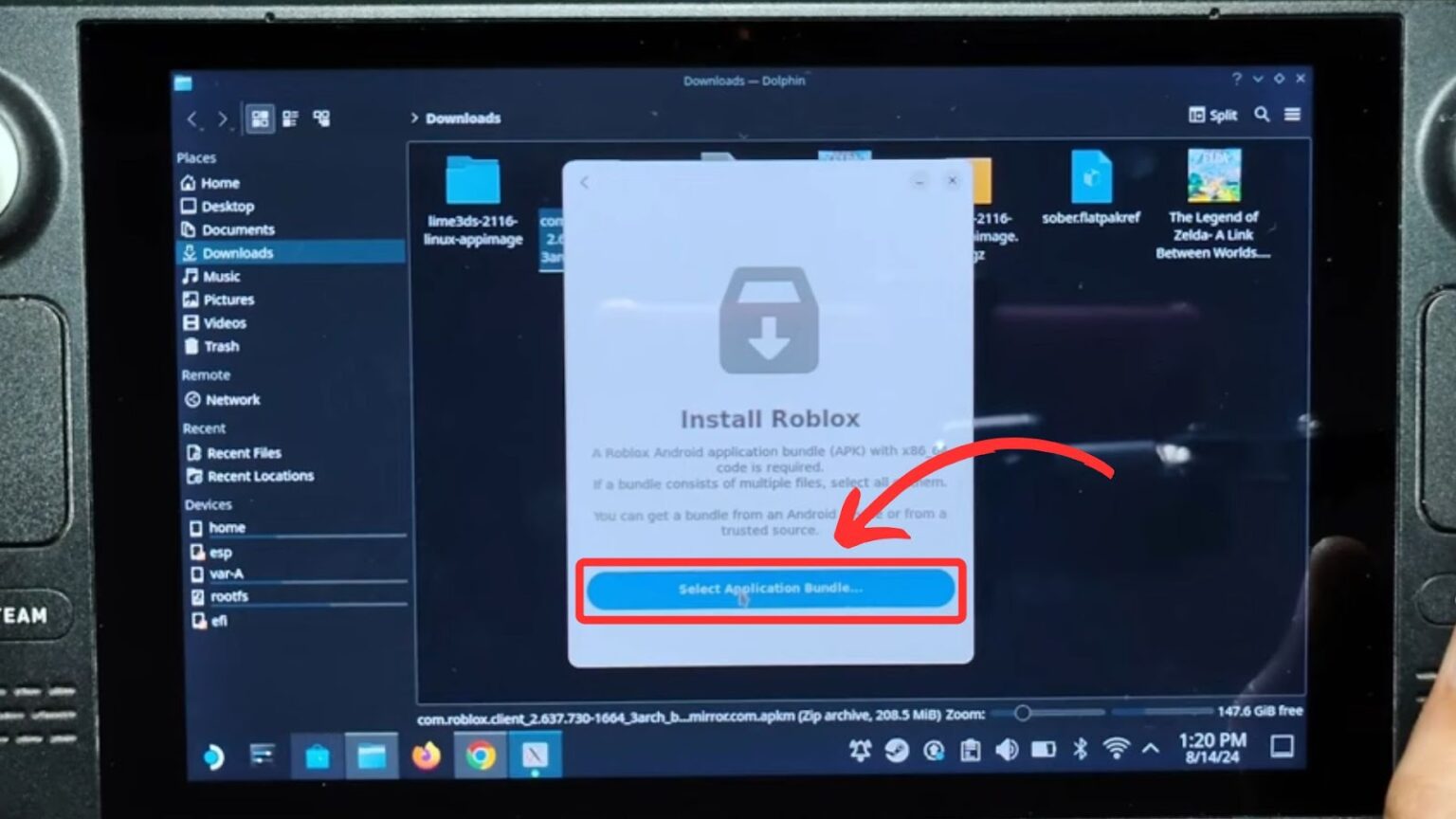
- Step 3 Install Roblox via Lutris/Bottles: Open Lutris or Bottles. You'll typically find community scripts or options to install Roblox. Follow their specific guides which will set up a Wine/Proton prefix for Roblox. This usually involves downloading the Roblox installer directly through the application.
- Step 4 Add to Steam: Once Roblox is installed via Lutris/Bottles add the Roblox Player executable from within its prefix to your Steam library as a non-Steam game. This allows you to launch it directly from Gaming Mode.
How Do I Optimize Roblox Performance on My Steam Deck?
Performance optimization is key to a smooth gaming experience especially for a platform with as much variety as Roblox. Here are some tips:
- Use Proton GE: If youre using the compatibility layer method consider installing Proton GE (GloriousEggroll). This is a community-maintained version of Proton that often includes newer fixes and optimizations for specific games including some that benefit Roblox. You can install it via a tool like ProtonUp-Qt from the Discover Software Center.
- Enable FSR: AMD FidelityFX Super Resolution (FSR) can upscale lower-resolution images to fit your screen improving framerates with minimal visual impact. Access this in the Steam Decks Quick Access Menu (the three dots button) under the Performance tab.
- Adjust In-Game Settings: This is crucial. In Roblox reduce the graphics quality level in the game settings. Lowering texture quality shadow detail and draw distance can significantly boost FPS. Experiment to find a balance you like.
- Steam Deck Performance Settings: In the Quick Access Menu you can set per-game profiles for refresh rate frame rate limit TDP (Thermal Design Power) and GPU clock speed. Limiting the FPS to 30 or 40 can often provide a more consistent experience than an uncapped but fluctuating higher FPS.
- Close Background Apps: In Desktop Mode ensure you dont have unnecessary applications running in the background consuming precious system resources.
Are There Any Control Setup Tips for Roblox on Steam Deck?
Roblox games are designed with varied control schemes making Steam Deck customization essential. Many Roblox experiences are built for mouse and keyboard so you'll need to map those inputs to the Steam Decks gamepad controls.
- Community Layouts: The first thing to check is the community layouts in the Steam input configurator. For your non-Steam Roblox game in your Steam Library select the controller icon and browse community layouts. Chances are someone has already created an excellent profile.
- Custom Mapping: If a community layout doesnt quite fit you can create your own. Map the left trackpad to act as a mouse the right trackpad for camera control and the shoulder buttons or back paddles for common actions like jump reload or inventory. Utilize the joystick click and double-tap functions for additional commands.
- Virtual Keyboard: Remember you can always bring up the virtual keyboard (Steam button + X) for typing in chat or entering codes.
- Action Sets: For complex Roblox games create action sets. For example one set for general movement another for building or inventory management. This lets you switch between different control schemes on the fly.
What About Joining Friends and Social Play?
Social gaming is a cornerstone of Roblox and the Steam Deck doesnt hinder this. Since youre running the full Roblox client albeit through a workaround you can still join friends invite them to games and use the in-game chat just as you would on a PC. If youre running Roblox via a browser the social features are identical. If youre using Lutris/Bottles the experience remains largely the same as the client is functioning. The only minor inconvenience might be the virtual keyboard for typing but its a small price to pay for portable social fun.
Common Roblox Steam Deck Problems and Fixes
Like any unofficial setup you might encounter a few bumps in the road. Here are some common issues and their solutions:
- Roblox Not Launching: Ensure your Proton/Wine version is up-to-date (Proton GE is often recommended). Verify Roblox file integrity if installed through a manager. Reinstalling Roblox clean might also resolve this.
- Poor Performance/Stuttering: Refer to the optimization tips above. Adjust in-game graphics settings lower Steam Deck TDP/FPS limits. Update your SteamOS and Proton versions.
- Controls Not Working: Check your Steam Input configuration. Experiment with different community layouts or create your own. Ensure the controller settings are applied to the correct executable.
- Login Issues: Clear browser cache if using browser method. If using a compatibility layer ensure it has proper internet access. Sometimes antivirus or firewall settings (less common on Steam Deck but possible with custom setups) can interfere.
- Black Screen: This can often be a compatibility layer issue. Try a different Proton version. Some users report success by enabling or disabling F-sync/E-sync in Proton settings.
Is Roblox Free to Play on Steam Deck?
Yes absolutely! Roblox remains a free-to-play platform on the Steam Deck just as it is on PC mobile and other consoles. You can download the client create an account and access millions of games without spending a dime. Of course like any free-to-play title there are optional in-game purchases (Robux) for cosmetic items game passes and other enhancements. The core experience however is entirely free allowing budget-conscious gamers to enjoy endless entertainment without upfront costs.
What Are the Best Roblox Games for Steam Deck?
With millions of experiences the 'best' is subjective but certain types of games lend themselves well to the Steam Deck's portable nature and controls. Games with simpler graphics or more relaxed gameplay often perform best and are perfect for unwinding after a long day.
- Tycoon Games: Many tycoon games (e.g., Retail Tycoon 2 Theme Park Tycoon 2) are less graphically demanding and rely on point-and-click mechanics easily mapped to trackpads.
- Simulation Games: Games like Adopt Me or Bloxburg are popular social simulations that work well.
- Obby/Parkour Games: These often have straightforward controls.
- Cozy Games: Social and less competitive games are ideal for short bursts of relaxation.
- Avoid Intense FPS/Competitive Games: While possible highly competitive first-person shooters might be challenging to master with gamepad controls compared to a mouse and keyboard unless youre highly skilled with the trackpads.
Staying Current with Roblox and Steam Deck Updates
The gaming landscape particularly for a platform like Roblox and a device like the Steam Deck is constantly evolving. To ensure the best experience it's vital to stay updated.
- SteamOS Updates: Regularly check for SteamOS updates. Valve frequently releases patches that improve compatibility performance and add new features.
- Proton Updates: If you're using Proton especially Proton GE ensure it's up to date. Newer versions often include crucial fixes for various games.
- Roblox Client Updates: The Roblox client itself updates frequently. These updates are usually handled automatically when you launch the game but if you encounter issues a manual reinstall might grab the latest version.
- Community Forums: Engage with the Steam Deck and Roblox communities online. Forums like Reddit's r/SteamDeck are invaluable resources for troubleshooting finding new tips and staying informed about the latest workarounds.
Getting Roblox on your Steam Deck might seem like a bit of a project initially but the payoff is immense: portable access to a world of creativity and social play. Whether you prefer the simplicity of a browser or the stability of a compatibility layer the ability to game on the go in a way that truly fits your lifestyle is priceless. This freedom lets you connect with friends build new skills and find moments of relaxation no matter where you are. So dive in customize your controls and enjoy the endless possibilities of Roblox on your powerful handheld. What's your biggest gaming challenge with portable setups? Comment below!
FAQ Section
Q: Is Roblox officially supported on Steam Deck?
A: No Roblox is not officially supported by Valve on the Steam Deck nor is it available on the Steam Store. However it can be installed and played using workarounds like web browsers or Windows compatibility layers.
Q: Do I need a Windows license to play Roblox on Steam Deck?
A: No you do not need a Windows license. The methods described either use the native Linux browser or compatibility layers like Proton and Wine which emulate a Windows environment without requiring an actual Windows installation or license.
Q: Can I use a mouse and keyboard with Roblox on Steam Deck?
A: Yes you can! In Desktop Mode or even Gaming Mode with a dock you can connect a mouse and keyboard to your Steam Deck via USB or Bluetooth. This can provide a more traditional PC gaming experience for Roblox.
Q: What are the best Proton settings for Roblox?
A: For Roblox many users recommend Proton GE as it often includes specific fixes. Within Proton settings enabling F-sync or E-sync can sometimes improve performance. Experiment with different Proton versions (e.g., 7.0-6 Experimental or GE) to find what works best for your specific Roblox experiences.
Q: Will my existing Roblox account work on Steam Deck?
A: Yes your existing Roblox account will work perfectly fine on Steam Deck. Once you install the Roblox client or access it via a browser simply log in with your credentials as you would on any other device.
Q: Can I play any Roblox game on Steam Deck?
A: While most Roblox games should run some very graphically intensive or poorly optimized experiences might struggle or have performance issues. Generally games that are less demanding on hardware and have flexible control schemes work best. The vast majority of titles are playable.
Install Roblox on Steam Deck using browser or compatibility layers. Optimize performance through Proton settings and F-sync. Customize controls for seamless gameplay experience. Troubleshoot common issues like crashes and login problems. Enjoy social gaming and access a vast library of Roblox experiences on the go. Stay updated with SteamOS for best compatibility and smooth operation.
35

Can I Play Roblox On Steam Deck Roblox Steam Deck 1 . Install Roblox On The Steam Deck In 5 Minutes Working Super Easy . Play Roblox On Steam Deck 6 Easy Steps Alvaro Trigo S Blog Roblox Steam Deck . Can You Play Roblox On A Steam Deck A Complete Guide Roblox Sd . How Can You Play Roblox In 2026 And Beyond Can You Play Roblox On The Steam Deck Yes You Can



Can You Play Roblox On A Steam Deck A Complete Guide Roblox Steam Deck 550x309 . Steam Deck Roblox Cdgzu Com Roblox Steam Deck. Not Working Anymore How To Install Roblox On Steam Deck Very Easy . Roblox Steam Games . A Quick Guide To Roblox On The Steam Deck YouTube


Roblox Working On Steam Deck Again R SteamDeck . Roblox On Steam Deck YouTube . 2024 Roblox Player And Studio Install Guide For SteamOS 3 5 7 Steam . Roblox On Steam Deck R Bloxymemes Roblox On Steam Deck V0 . Roblox Steam Games Roblox On The Steam Deck V0


Can I Play Roblox On Steam Deck Sddefault . Can You Play Roblox On A Steam Deck A Complete Guide Steam . Does Roblox Work On The Steam Deck R Does Roblox Work On The Steam Deck V0 . How To Install Roblox On Steam Deck 2026 Full Guide YouTube . Can You Play Roblox On A Steam Deck A Complete Guide Can You Play The Steam Deck Offline In Short Yes


Highway Legends Codes Roblox Mixcollage 25 Jun 2024 10 46 Am 1906 . Can You Play Roblox On The Steam Deck Potentially PC Guide Steam Deck How To Bring Up Keyboard 1 Of 2 . Can You Play Roblox On The Steam Deck Potentially PC Guide Steam Deck How To Connect PS5 Controller 2 Of 8 . Can You Play CS2 On Steam Deck Swap Gg Steam Deck Oled Review V0 . Steam Deck In 2026 The Most Affordable Gaming Option NoobFeed Steam Deck OLED


Your Guide To Getting A Steam Deck In 2026 LevelUpTalk Steam Deck Console 02 19 2026 00fa7ed9 51b8 4785 A153. Steam Deck 2 Everything We Ve Heard About Valve S Rumored Handheld . How To Buy Steam Deck 2 Base Model 2026 Launch From ComGateway Md. Steam Deck OLED In 2026 Review Performance Value And Buying Advice GeForce Now Ultimate Steam Deck 3 . Can You Play Roblox On A Steam Deck A Complete Guide Fc 26 Steam Deck
Play Roblox On Steam Deck 6 Easy Steps Alvaro Trigo S Blog Play Roblox Steam Deck Install Apk 1536x864 . HOW TO INSTALL ROBLOX ON STEAM DECK IN 2026 QUICK EASY YouTube . Play Roblox On Steam Deck 6 Easy Steps Alvaro Trigo S Blog Is Oblox Steam . How To Install And Play Roblox On Steam Deck Easy Guide Game Voyagers 8Z UgV UmDk Ps44 EA. How To Play Roblox On Steam Deck Playing Roblox On Steam Deck Via Internet Browser